Auto reply email for business: templates & setup

In this article
- What should a business auto reply say?
- 6 auto reply templates ready to copy
- How to set up an auto reply in Gmail
- How to turn on automatic replies in Outlook
- Instagram auto replies with Meta Business Suite
- What about WhatsApp?
- The golden rule: an auto reply only buys you time
- A simple daily routine so no message gets lost
A customer emails your salon on Sunday evening to book an appointment. Nobody replies. By Monday morning they have booked somewhere else. It happens with email, website forms, Instagram and WhatsApp, and you rarely find out: a customer who gets no answer does not complain, they simply go to the next business. An auto reply email for business is there to close that gap.
A study published in Harvard Business Review in 2011 warned that most companies are not responding nearly fast enough to the enquiries they receive online. This guide gives you templates to copy and the steps to switch them on in Gmail, Outlook and Instagram. If most of your customers message you on WhatsApp, the full setup is in how to set up WhatsApp Business auto replies.
What should a business auto reply say?
A good auto reply is short and puts the customer at ease. It has five parts:
- Thanks: confirm the message has arrived. It sounds small, but it removes the doubt about whether they wrote to the right place.
- When you will reply: a specific time, such as before 6pm today or within one working day. Avoid as soon as possible, which promises nothing.
- What to do if it is urgent: a phone number or another quick way to reach you.
- A useful link: bookings, prices, menu or FAQs. Plenty of enquiries answer themselves with that link.
- A signature: business name, phone number and website, so the customer knows who is replying.
6 auto reply templates ready to copy
Swap the text in square brackets for your own details. Write a reply time you can genuinely keep.
| Situation | Message |
|---|---|
| General email enquiry | Hello, thanks for emailing [Business]. We have received your message and will reply within [one working day]. If it is urgent, call us on [phone]. Prices and opening hours: [link]. Kind regards, [Business] · [phone] · [website] |
| Website contact form | Thanks, [name]. Your enquiry has come through. If you wrote before [5pm], we will reply today; if it is later, first thing tomorrow. Want an appointment now? Book here: [booking link]. [Business] · [phone] |
| Out of hours | Hello, we are closed right now. We are open [Monday to Saturday, 9am to 8pm] and will reply from [9am] tomorrow. For a table tonight, call [phone]. Menu and opening hours: [link] |
| Holidays or closure | Thanks for your message. [Business] is closed for the holidays from [1] to [15 August]. We are back on [16 August] and will answer every message in order within [2 days]. If it is urgent, email [email] or call [phone]. |
| Instagram direct messages | Hi! Thanks for getting in touch. Someone from the team will reply within [4 hours] during opening hours. Prices: [link]. To book without waiting: [booking link]. |
| Quote request | Thanks for asking [Business] for a quote. To give you a price we need your address, a photo of the job and which days suit you for a visit. Reply to this email with those details and we will call you within [24 hours]. If you have a leak or an urgent fault, call [phone] now. |
If you are closing for the holidays, put a notice on the door and on social media too. Our free holiday hours sign maker has one ready in a minute, with the same dates as your auto reply.
How to set up an auto reply in Gmail
Gmail calls it a vacation responder. According to Gmail Help, these are the steps on a computer:
- On your computer, open Gmail.
- At the top right, click Settings, then See all settings.
- Under the General tab, go to the Vacation responder section.
- Select Vacation responder on.
- Fill in the date range, subject and message.
- At the bottom of the page, click Save Changes.
Three details worth knowing. If you have a signature, it shows below the reply. In most cases, your reply is only sent to people the first time they message you; if the same person writes again after four days and the responder is still on, they get it again. And emails sent to your spam folder do not get a reply, so check that folder now and then.
How to turn on automatic replies in Outlook
The steps depend on your version. Microsoft's guide to automatic replies in Outlook explains them like this:
- New Outlook: on the View tab, select View settings. Select Accounts, then Automatic Replies. Turn the Automatic replies toggle on and, if you like, select Send replies only during a time period and enter start and end times.
- Classic Outlook: select File > Automatic Replies. In the Automatic Replies box, select Send automatic replies, write your message and select OK.
Watch out for one setting. Microsoft warns that sending replies outside your organisation will send your automatic reply to every email you receive, including newsletters, advertisements and potentially junk email, and it suggests limiting replies to your contacts. For a business, the catch is that a new customer is almost never in your contacts. If you want them to get it, keep replies outside your organisation switched on and accept that the odd newsletter will get one too.
Instagram auto replies with Meta Business Suite
For Instagram direct messages, auto replies are switched on from the Inbox in Meta Business Suite, which covers your Facebook Page, Instagram account and WhatsApp Business account. According to Meta's Business Help Centre page on Inbox automations, on desktop:
- Go to Inbox in Meta Business Suite.
- Click Automations.
- Click Create automation in the top right.
- Choose Auto reply (a greeting when someone messages you for the first time) or Away message (a reply when you are not available).
- Click Create automation and complete the on-screen instructions.
You can then turn it on or off with the toggle below Status. Meta notes that certain messaging features for businesses in Europe and Japan are unavailable, so if an option is missing, that may be why.
What about WhatsApp?
WhatsApp Business has its own greeting message, away message and quick replies, all set up in the app. We cover it step by step, with example messages to copy, in the WhatsApp guide linked at the top of this page. If you do not yet have a direct link so people can message you from your website or Instagram, make one free with our WhatsApp link generator.
The golden rule: an auto reply only buys you time
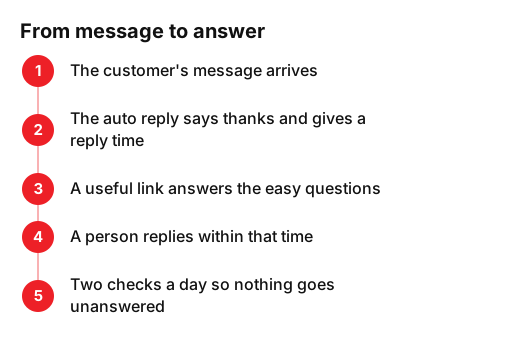
An auto reply makes a promise. If it says we will reply within 24 hours and you answer three days later, you look worse than if you had said nothing. So the reply time in your message has to match your real working day, and a person must always answer within it.
A simple daily routine so no message gets lost
- One person in charge: decide who answers messages. If it is the whole team, in practice it is nobody.
- Two checks a day: for example, when you open and after lunch. Email, website form, Instagram and WhatsApp, always in the same order.
- Saved replies: keep your most common answers to hand (prices, opening hours, how to find you) so you can reply in a minute.
- A weekly sweep: look for unanswered messages and check the spam folder.
- Dates kept up to date: when your hours change or you close for a holiday, update the auto reply too.
If customers also write to you by email, Instagram and your website form, what helps most is having all those messages in one place, with replies that sound like your business, so none of them goes unanswered.
This week, start with the easy wins: switch on the auto reply in your email, set up Instagram and choose who answers. If your website has no clear contact form or messages go missing on the way, we look at how customers reach you as part of our web design for local businesses. And if you would rather talk it through, send us a message from our contact page: a real person from our team will answer.
Frequently asked questions
- What is an auto reply email for business?
- It is a message your email, Instagram or WhatsApp sends automatically when someone gets in touch. It confirms the enquiry has arrived, says when you will reply and gives a phone number or a useful link in the meantime.
- Does Gmail's vacation responder reply to every email?
- No. According to Gmail Help, in most cases it is only sent to people the first time they message you. If the same person writes again after four days and the responder is still on, they get it again. Emails in your spam folder do not get a reply.
- How do I set up out of office in Outlook 365?
- In new Outlook, go to the View tab, select View settings, then Accounts and Automatic Replies, and turn the toggle on. In classic Outlook, select File > Automatic Replies, then Send automatic replies, and select OK.
- What is a good out of office message for annual leave?
- Keep it to four lines: thanks, the dates you are away and the day you are back, who to contact if it is urgent, and your signature. Use the holidays template in this guide and change the dates.
Sources
- Harvard Business Review, «The Short Life of Online Sales Leads». hbr.org/2011/03/the-short-life-of-online-sales-leads
- Gmail Help, «Send an automatic reply when you're out of office». support.google.com/mail/answer/25922?hl=en
- Microsoft Support, «How to set up out of office automatic replies in Outlook». support.microsoft.com/en-gb/office/send-automatic-out-of-office-replies-from-outlook-9742f476-5348-4f9f-997f-5e208513bd67
- Meta Business Help Centre, «Set up Inbox automations in Meta Business Suite on desktop». www.facebook.com/business/help/318238182723007?locale=en_GB