WhatsApp auto reply: setup guide and examples
In this article
- Can you set an auto reply on normal WhatsApp?
- How the greeting, quick replies and away message fit together
- How to set up a greeting message in WhatsApp Business
- How to set an away message in WhatsApp Business
- How to create quick replies
- What should an auto reply say? Examples to copy
- Quick reply ideas for your business
- An auto reply doesn't replace a person
- What to do this week
A WhatsApp auto reply answers straight away when a customer messages you while you're with another customer, driving or asleep. The official, free way to get one is the WhatsApp Business app, which has three tools: the greeting message, the away message and quick replies. This guide shows you how to switch each one on, step by step, with messages you can copy.
Before customers can message you, they have to find you. Our free WhatsApp link and QR code generator lets them open a chat with you in one tap from your website, your Instagram or a sign on the counter. And one thought before we start: an auto reply buys you time, but the customer is still waiting for a real person to answer.
WhatsApp is where your customers already are. Ofcom's 2025 report on how the UK goes online found that WhatsApp is used by 90% of adults, and in a 2023 Ofcom study 65% of UK adults said WhatsApp was their main online communication service.
Can you set an auto reply on normal WhatsApp?
WhatsApp has two separate apps. WhatsApp Messenger is the usual one, for friends and family. WhatsApp Business, according to WhatsApp's own Help Center, is a free-to-download app that provides tools to automate, sort, and quickly respond to the messages you receive.
The three tools in this guide belong to WhatsApp Business. You won't find them in the settings of the normal app. For a business, the simple route is the official app.
One detail to keep in mind: you can't use the same phone number on both apps at the same time, although you can move your number from one to the other. If you currently answer customers from your personal WhatsApp, decide whether to move that number to Business or use a new one just for the business.
How the greeting, quick replies and away message fit together
Think about the journey of a message. The customer writes and gets a greeting. You answer their usual questions with saved replies. If they write when you're closed, they get the away message with the time you'll reply. And at the end, always, a person answers.
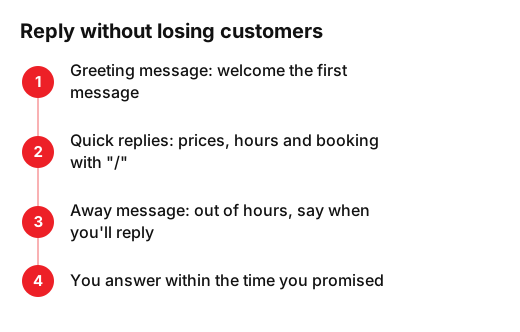
All three live in the Tools tab of WhatsApp Business, on both Android and iPhone.
How to set up a greeting message in WhatsApp Business
The greeting message goes out automatically when a customer messages you for the first time, or when they write again after 14 days of inactivity in their chat with you. It stops anyone feeling they're talking to a wall. Here's how to turn it on:
- From the Tools tab, tap Greeting message.
- Turn on Send greeting message.
- Tap Greeting message to edit the text, then tap OK.
- Tap Recipients and choose Everyone, Everyone not in address book, Everyone except… or Only send to…
- Tap Save.
For a business, Everyone or Everyone not in address book is the usual choice, so your family don't get the new-customer welcome. Your phone needs an internet connection to send it.
How to set an away message in WhatsApp Business
The away message replies when you can't. The steps are almost the same:
- From the Tools tab, tap Away message.
- Turn on Send away message.
- Tap the message to edit it, then tap OK.
- Tap Schedule and choose when it's sent.
- Tap Recipients, choose who gets it and tap Save.
Under Schedule there are three options: Always send, Custom schedule and Outside of business hours. The last one only appears if you've set your business hours in your business profile, so do that first.
| Option | When it's sent | When to use it |
|---|---|---|
| Always send | At all times | Rarely: if you're open, customers get a notice that doesn't apply |
| Custom schedule | Only during the period you pick | Holidays, a refit, a training day |
| Outside of business hours | Only outside your opening hours | The usual choice for a business with set hours |
How to create quick replies
Quick replies are saved messages you send yourself with a shortcut, whenever it suits you. You can store up to 50 quick replies, and the app creates some by default using the hours and address in your business profile. To create one:
- From the Tools tab, tap Quick replies.
- Tap the add icon.
- Tap Message and type the text.
- Tap Shortcut and choose the shortcut word, for example hours.
- Tap Save.
To use one, open a chat, type "/" and pick the reply. The text appears in the message box and you can tweak it before sending. A heads-up: on WhatsApp Web or Desktop, quick replies don't support photos or videos.
What should an auto reply say? Examples to copy
A good auto reply does three things: greets with the business name, says when you'll answer and gives a way to avoid waiting, such as a booking link. Swap the name, hours and link for your own.
- Hair salon, greeting: "Hi! Thanks for messaging Lucy's Salon. You can book any time at yourbusiness.co.uk/book. If you have a question, send it over and we'll reply during salon hours, Tuesday to Saturday."
- Plumber, away: "Hi, thanks for messaging Ruiz Plumbing. We're on a job right now and can't check the phone. We'll reply today before 7pm. If you have a leak, call the number on our profile."
- Dental practice, out of hours: "Hello, thanks for messaging Bright Smile Dental. We're closed now. We'll reply tomorrow from 9am. You can book an appointment at yourbusiness.co.uk/appointments. For an emergency, please call the practice."
- Restaurant, greeting: "Hi! Thanks for messaging The Corner Kitchen. Book a table at yourbusiness.co.uk/book, or tell us the day, time and number of people and we'll confirm. We take takeaway orders from 12 to 3.30pm."
And an away message that works for almost any business: "Hi, thanks for your message. We're closed right now; we're open Monday to Friday, 9am to 6pm. We'll reply tomorrow before 11am. If you like, book now at yourbusiness.co.uk/book and we'll confirm when we open."
Quick reply ideas for your business
| Shortcut | What for | Example text |
|---|---|---|
| /prices | When people ask what it costs | "Here's our price list: yourbusiness.co.uk/prices. Tell me what you need and I'll give you an exact price." |
| /hours | Opening hours | Use the default reply with the hours from your profile, or write your own with bank holidays. |
| /address | How to find you | "We're at 10 High Street, next to the chemist. I'll send you the map location." |
| /book | How to book | "You can book any time at yourbusiness.co.uk/book. Pick the service, day and time in a minute." |
| /review | Asking for a review after a visit | "Thanks for coming in. If you enjoyed it, would you leave us a Google review? It takes a minute and helps us a lot." plus your review link |
The last one is the one people forget. Create your direct link with our Google review link tool and read how to get more Google reviews without making customers uncomfortable.
An auto reply doesn't replace a person
An auto reply buys time, nothing more. If you promise to answer "before 11am", answer before 11am. A customer who gets a notice followed by silence feels fobbed off, and messages another business. Three rules we follow with the businesses we work with:
- Promise a time you can keep, even if it's a long one.
- Check messages when you open and when you close, every day.
- Update the away message whenever your hours change: bank holidays, holidays, summer.
The same goes for email, your website form and Instagram messages. Our auto reply templates for email and Instagram give you ready-made messages and show where to switch them on in Gmail, Outlook and Instagram.
What to do this week
- Install WhatsApp Business and complete your business profile, with hours and address.
- Turn on the greeting message and the away message outside business hours.
- Save five quick replies: prices, hours, address, booking and review.
- Put your WhatsApp link on your website, on Instagram and on a QR code by the till.
If customers also write to you by email, Instagram and your website form, what helps most is having all those messages in one place, with replies that sound like your business, so none of them goes unanswered.
If you want the WhatsApp button and online booking to work together on your website, see how we build websites that bring in messages and bookings or tell us about your business and we'll say what we'd change.
Frequently asked questions
- How do I set up an auto reply on WhatsApp?
- Use the free WhatsApp Business app. From the Tools tab, turn on Away message or Greeting message, write your text, choose the recipients and tap Save.
- Why isn't my greeting message sending?
- It only goes to people messaging you for the first time or after 14 days without contact. Check your recipient settings too. And if Meta Business Agent is connected, greeting messages are turned off.
- Does the away message work when my phone is off?
- Don't count on it. WhatsApp's Help Center says your device must have an active internet connection to send away messages.
- Can I use my personal number on WhatsApp Business?
- Yes, you can move your WhatsApp number to WhatsApp Business. What you can't do is use the same number on both apps at the same time.
- How many quick replies can I save?
- Up to 50. Keep a copy of the important ones outside WhatsApp: a deleted quick reply can't be recovered.
Sources
- WhatsApp Help Center, «About WhatsApp Business». faq.whatsapp.com/641572844337957/?locale=en_GB
- WhatsApp Help Center, «How to use greeting messages». faq.whatsapp.com/501866148528310/?locale=en_GB
- WhatsApp Help Center, «How to use away messages». faq.whatsapp.com/2565868990219715/?locale=en_GB
- WhatsApp Help Center, «How to use quick replies». faq.whatsapp.com/1791149784551042/?locale=en_GB
- Ofcom, «From apps to AI search: how the UK goes online in 2025». www.ofcom.org.uk/media-use-and-attitudes/online-habits/from-apps-to-ai-search-how-the-uk-goes-online-in-2025
- Ofcom, «WhatsAppening in the world of online communications?». www.ofcom.org.uk/internet-based-services/technology/whatsappening-in-the-world-of-online-communications