QR Code Business Card: How to Get It Right
In this article
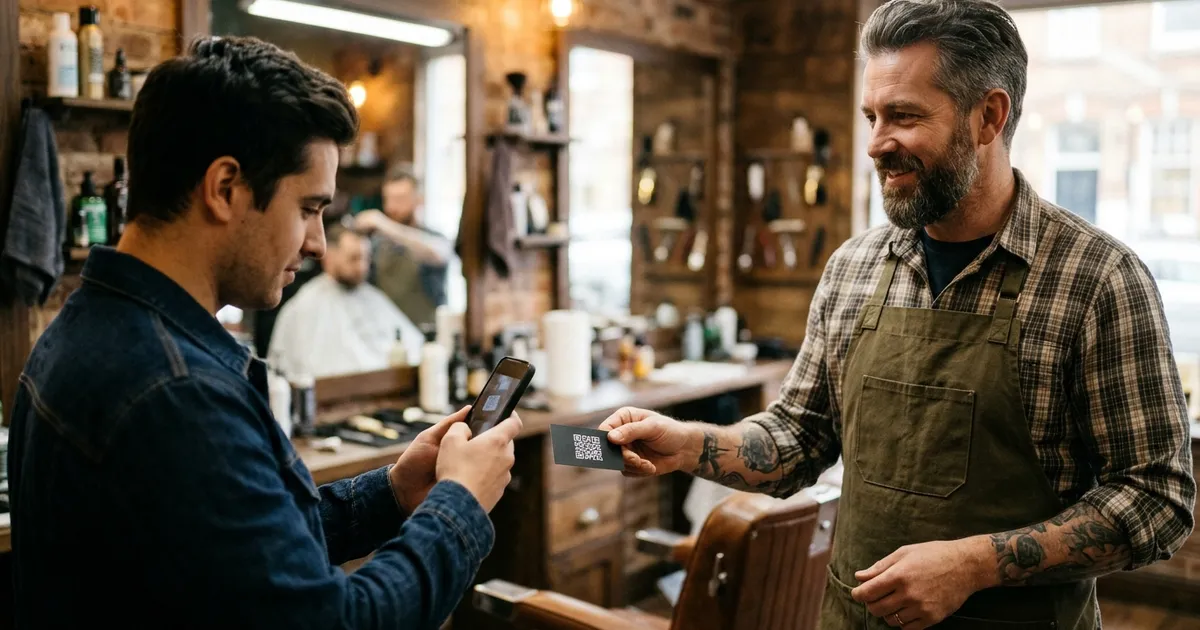
You hand your card to a new client, it goes into a coat pocket and a week later it is lost. If the card has a QR code, your name, number and website are on their phone in two seconds. A QR code business card only works that well if the code opens the right thing, is printed at a sensible size and is tested before you send hundreds of copies to the printer.
If you want to skip ahead, make yours with our free business card QR code generator: type your details, then download the QR or print 10 cards per page. Below we explain what the code should open, how big it needs to be and how to check it works.
What should the QR code on a business card open?
A QR code only stores a bit of text: a set of contact details or a web address. What happens when someone scans it depends on what you put in. These are the four most useful options for a local business:
| What the QR opens | What the customer sees | Works well for |
|---|---|---|
| Your contact (vCard) | Their phone offers to save your name, number, email and website to their contacts | Hairdressers, barbers, physios and trades who work by appointment |
| Your website | Your home page, menu or booking page | Restaurants, shops and anyone with prices on their site |
| A WhatsApp chat | A chat with you already open, even with a message typed in | Businesses that take bookings or quotes on WhatsApp |
| Your Google reviews | The box to leave you a review | Cards you hand over at the end of a job |
For the last two you need the link first. Our WhatsApp link generator gives you one in a minute. For reviews, Google Business Profile Help suggests asking customers to visit a Google link or scan a QR code. You can get your Google review link and turn it into a QR.
Pick one destination per card. Two or three codes on something this small confuse people and end up too tiny to scan.
vCard or website link: which is better?
A vCard is a digital contact card: the format phones use to save contacts. When the QR holds a vCard, your details sit inside the code itself. When it holds a link, the code only stores an address and the details live on your website.
- vCard: works without an internet connection and never expires, because it does not rely on any page. The downside: if your number or email changes, you reprint.
- Link: the code is simpler and you can change the page without touching the card. The downside: if that page disappears, the QR stops working.
- Link through a third-party service: some generators give you a code that goes through their own address before reaching your site. If that service closes or starts charging, every card you printed stops working. A QR that points straight to your own address is safer.
One technical point is worth knowing. According to Denso Wave, the company behind the QR code, the more data a code holds, the more modules it needs (the little squares it is made of) and the larger it gets. A vCard with name, role, phone, email, website and address makes a much denser code than a short link. So only include what people will actually use.
Our advice: use a vCard if you want people to save you to their contacts, which is the usual point of a business card. Use a link if your website already has bookings, prices and everything else, and that is where you want people to go.
What to put in the vCard
- Your first and last name, exactly as you want it to appear in their contacts.
- Your business name and your role, for example ‘Owner’ or ‘Senior Stylist’.
- One phone number with the country code (+44, +49, +41…), so it works from abroad too.
- Email and website.
- Address, only if customers come to your premises.
Under the QR, add a short line that says what scanning does. Copy one of these: ‘Scan to save my contact’, ‘Scan to book your appointment’ or ‘Scan to review us on Google’. Without that line, people have to guess what the code is for.
How big should a QR code be on a business card?
Denso Wave’s guide to module size says the larger each module is, the more stable and easier to read the code becomes, and recommends printing QR codes as large as the space allows. On a business card that usually means a good part of the back. As a rule of thumb, we never go below 2 x 2 cm, and a little bigger if the vCard holds a lot of details.
The margin matters just as much. The code needs a blank area around it, called the quiet zone. According to Denso Wave’s page on the code area, that margin should be four modules wide on every side. Push the QR up against text, a photo or the edge of the card and it may stop scanning.
- Contrast: a dark code on a light background. Black on white or cream is the safest. Avoid pale colours, gradients and photos behind the code.
- Nothing on top: do not cover part of the code with your logo or decoration.
- Away from the edge: keep the QR clear of the trim line so the cut does not eat into the margin.
- Finishes: gloss varnish or gold foil over the code can cause glare that confuses the camera. Keep special finishes off the QR.
- Vector file: if your printer accepts it, use the SVG version of the QR, which stays sharp at any size.
How do you test a QR code before printing?
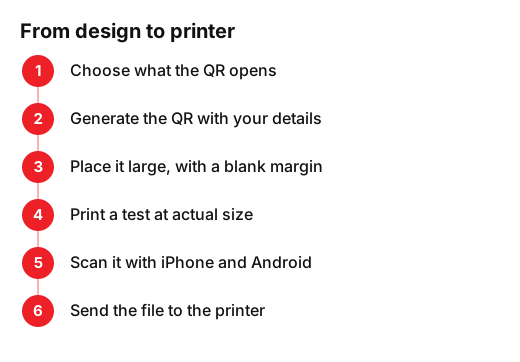
Before ordering hundreds of cards, do a paper test. It takes ten minutes:
- Print the card at actual size, 100%, on an ordinary printer.
- Scan it with the camera on an iPhone and on an Android phone. If there is an older phone to hand, try that too.
- Try it in dim light and from about 20 to 30 cm away.
- Check the result: the contact saves with your name spelt correctly, the number dials and the website loads.
- Ask someone else to scan it without telling them anything. If they hesitate, improve the line under the code.
Once the test works, send the file to the printer and ask for a proof if they offer one. When the cards arrive, scan the first one before you start handing them out.
What else does a good business card need?
The QR is a bonus. The card still has to work for people who never scan it:
- Your logo and brand colours, the same as on your shopfront, website and social media.
- Your business name and one line saying what you do: ‘Hair and colour’, ‘Bike repairs’, ‘Nails and lashes’.
- Your phone number, easy to read, for people who would rather call.
- Your website or Instagram, plus your address if you have premises.
- White space: a card crammed with text is harder to read.
If your business does not have a clear logo and colours yet, start there. We work on it in our branding and visual identity service, so your cards, signs and website all share the same look.
An idea for cafés, barbers and nail bars: put the QR on the front and use the back for stamps. We explain how to set it up in our guide to the customer loyalty card.
What to do this week
Decide what you want to happen when someone scans your card: save your contact, book, message you or leave a review. Then create the QR for your card with your contact details, download it as an SVG for your own design or print 10 ready-made cards per A4 page, and run the scan test before you go to the printer. It is free and there is nothing to sign up for.
Frequently asked questions
- What is a vCard?
- It is a digital contact card, the format phones and email programs use to store contacts. Put a vCard in a QR code and, when someone scans it, their phone offers to save your name, number, email and website to their contacts.
- Does a business card QR code expire?
- A QR code that holds your details inside it does not expire: it works for as long as it can be read. A QR code that points to a web page stops working if that page disappears, and codes that go through a third-party service stop working if that service cuts access.
- What is the minimum size for a QR code on a business card?
- The bigger it is, the easier it scans. As a rule of thumb, do not print it smaller than 2 x 2 cm and leave a blank margin four modules wide around it. Modules are the little squares the code is made of.
- Can I make the QR code a colour or put my logo in the middle?
- You can use a dark brand colour on a light background. Covering the centre with a logo is risky, because the code may stop scanning on some phones. If you do it, test with several phones before printing.
Sources
- Google Business Profile Help, «Tips to get more reviews». support.google.com/business/answer/3474122?hl=en
- DENSO WAVE (QRcode.com), «Information capacity and versions of QR Code». www.qrcode.com/en/about/version.html
- DENSO WAVE (QRcode.com), «Point for setting the module size». www.qrcode.com/en/howto/cell.html
- DENSO WAVE (QRcode.com), «Point for determining the code area». www.qrcode.com/en/howto/code.html