How to rank on Google Maps: a step-by-step guide
In this article
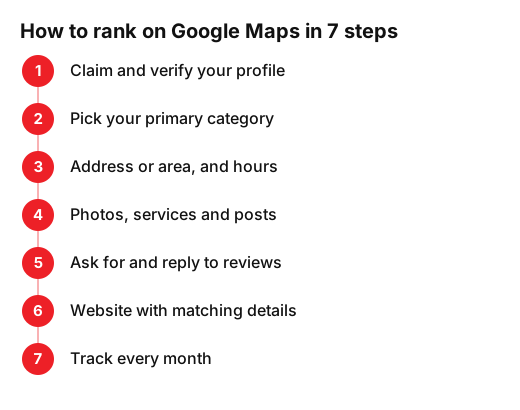
- 1. Claim and verify your Business Profile
- 2. Pick the most specific primary category
- 3. Address or service area, and real opening hours
- 4. Photos, services, products and posts
- 5. Reviews: ask, reply, repeat
- 6. Your website: matching details and a local page
- 7. Track your results every month
- What doesn't work and can get you suspended
- Your plan for this week
If you want to know how to rank on Google Maps, it all starts with your Google Business Profile. It's free, but it only brings in customers if you set it up properly and keep it current. Below is a seven-step local SEO checklist you can work through this week, with every rule taken from Google's own help pages. For the bigger picture first, read our complete local SEO guide.
One thing before you start: Google says there's no way to request or pay for a better local ranking. Local results are mainly based on relevance, distance and how well known your business is. You can't change distance. You can work on everything else, and that's what these steps do.
Prefer to watch first? Our 3-minute tutorial covers how Google ranks local businesses, the five steps you can do yourself, and how the same work helps you get recommended by ChatGPT and Gemini.
1. Claim and verify your Business Profile
Search for your business name on Google Maps. If it's already there, claim it. If not, add it with your Google Account. Until you verify, you can't edit your details or reply to reviews, and Google says a verified business is more likely to show up in search results.
Google decides automatically which verification methods you get, based on your business type, public info, region and opening hours. The most common ones are:
- Phone or text: a code goes to your business number. Automated phone menus won't receive it.
- Email: you follow the steps in the message.
- Video recording: if your business is eligible, Google recommends this option.
- Live video call: only during your opening hours and from your premises. Be ready to show your outside sign, your products or tools, and a staff-only area.
- Postcard: most codes arrive within 14 days and expire after 30. While you wait, don't edit your name, address or category, or the code won't work.
After that, Google's review can take up to 5 business days. Once you're verified, run through our 7-point Business Profile check.
2. Pick the most specific primary category
Your category tells Google what you are and which searches to show you in. Google confirms that the categories you select affect your local ranking and asks for the most specific one: instead of "Salon", choose "Nail salon". You can't create your own.
Think about what you do most of the time. A hairdresser who lives on cuts and colour shouldn't pick a vague beauty category. A dental clinic adds an orthodontics category only if it really offers it. A bakery with tables can set bakery as primary and café as secondary. Keep extra categories few, never use one just as a keyword, and bear in mind that changing it may mean verifying again.
3. Address or service area, and real opening hours
This is where many businesses go wrong. What you enter depends on whether customers come to you:
| Your situation | What to put on your profile |
|---|---|
| Customers visit you (hairdresser, bakery, dental clinic) | Full, exact address with permanent signage |
| You go to customers and don't receive them (plumber, cleaner) | No address, service area only |
| You do both (restaurant that also delivers) | Address and service area |
Google is direct about it: if you don't serve customers at your business address, remove it from your profile. You can set up to 20 service areas by town, city or postcode, not by radius, and the whole area shouldn't stretch beyond about two hours' drive from your base. A plumber covering one town and three nearby villages lists those four places, not the whole county.
Hours matter too. Businesses with complete and accurate info are more likely to appear in local results, and that includes special hours for bank holidays and closures. If someone turns up to a locked door, it can easily end in a bad review.
4. Photos, services, products and posts
Your profile is your shop window on Google. Upload real photos of the outside, the inside, your work and your products. Google recommends photos of 720 × 720 pixels, in focus, well lit and without heavy filters, and notes that an exterior photo helps customers recognise you when they arrive. Videos can be up to 30 seconds long.
Next, fill in your services or products using the words customers actually type: "teeth whitening", "emergency boiler repair", "sourdough loaf", "balayage". Then use posts for news, offers and events. We suggest one every week or two, so the profile looks active and people have a reason to pick you.
5. Reviews: ask, reply, repeat
Reviews feed into how well known your business is. Google looks at how many reviews you have and how many websites link to you, and says more reviews and positive ratings can help. Replying counts too, because it shows you value customer feedback.
Ask for a review straight after a good job, using your profile's review link or QR code. Reply to every review, negative ones included, calmly and briefly. Never buy reviews or write your own. Our guide to getting more Google reviews has more ideas for asking without feeling pushy.
6. Your website: matching details and a local page
Google asks that your profile name is the real-world name you use on your sign, website and stationery. Do the same with your address and phone number: written the same way on your profile, your site and any directories you're listed in. If one says "12 High St" and another "Unit 2, 12 High Street", pick one version and use it everywhere.
Then build a page on your site for your main service and area: what you do, where, opening hours, how to find you, a map and a call button. Link to that page from your profile. If you run a restaurant, our restaurant SEO guide applies these steps to your case.
7. Track your results every month
Your Business Profile has a performance section showing searches, views, calls, website clicks and direction requests. Note that these figures combine organic results and Google Ads. Write the numbers down on the first day of each month and compare month on month.
To check where you rank, search for your services on your phone from different spots in your area. Results shift depending on where the searcher is, because distance is one of the factors. If nothing moves after two or three months, go through the local ranking factors and the mistakes that undo them.
What doesn't work and can get you suspended
Some popular shortcuts are banned outright by Google's guidelines for representing your business:
- Stuffing keywords into your name. "Maria's Hair" is fine; "Maria's Hair Cheap Balayage Leeds" is not. Google warns that unnecessary information in your business name could result in suspension.
- Using a virtual office. If you rent a mailing address but don't operate there, that location isn't eligible for a Business Profile. A co-working desk only counts with clear signage, your own staff and customers served during opening hours.
- Making up addresses or creating several profiles for the same place. Only one is allowed per location.
- Adding keywords or URLs to your address lines, or using categories just as keywords.
There's no such thing as "number one in 24 hours" either. A well-ranked profile is built on accurate details, real reviews and steady effort.
Your plan for this week
- Monday: find your business, claim it and start verification.
- Tuesday: primary category, address or service area, and hours, including bank holidays.
- Wednesday: upload 10 real photos and complete your services or products.
- Thursday: check that your name, address and phone number match on your website and profiles.
- Friday: ask five happy customers for a review and reply to the ones you already have.
- Every month: log your performance figures and publish an update.
If you'd rather have a hand with it, our local SEO service for Maps and search reviews your profile, website and reviews, and leaves you with a clear plan for your area.
Frequently asked questions
- How long does it take to appear on Google Maps?
- It depends on the verification method. By postcard, most codes arrive within 14 days, and Google's review can then take up to 5 business days. Phone, email or video skip the wait for the post. Climbing the rankings takes longer: plan for weeks or months of steady work.
- Can I rank on Google Maps if I work from home?
- Yes, as a service-area business. Remove the address from your profile and set your service area by town, city or postcode. Your home address stays hidden and you still show up in your area.
- Does it cost anything to be on Google Maps?
- The Business Profile is free, and Google says you can't pay for a better local ranking. What it does cost is time: photos, reviews and keeping your details up to date.
- How do I check my rank on Google Maps?
- Search for your main services on your phone from different spots in your area and note your position each month. Also check your profile's performance section for searches, calls and clicks.
- Can I add my town or services to my business name?
- Only if they are part of your real-world name, the one on your sign and website. Adding them to rank breaks Google's guidelines and can lead to your profile being suspended.
Sources
- Google Business Profile Help, «Tips to improve your local ranking on Google». support.google.com/business/answer/7091?hl=en
- Google Business Profile Help, «Verify your business on Google». support.google.com/business/answer/7107242?hl=en
- Google Business Profile Help, «Manage your business category». support.google.com/business/answer/7249669?hl=en
- Google Business Profile Help, «Manage your service areas for service-area & hybrid businesses». support.google.com/business/answer/9157481?hl=en
- Google Business Profile Help, «Manage your Business Profile photos & videos». support.google.com/business/answer/6103862?hl=en
- Google Business Profile Help, «Guidelines for representing your business on Google». support.google.com/business/answer/3038177?hl=en
- Google Business Profile (YouTube), «Verify Your Business Profile». www.youtube.com/watch?v=bSj2-_fqc5U